
Internet support · Codex Streaming Help for your connection.
Internet support for Codex Streaming customers, on your schedule. Fix the most common Wi-Fi problems step by step, check your speed against your plan, and reach a local person when you need one.
Internet support for the most common problems
Pick what you are seeing, then work through the steps in order. Most issues clear up after a proper restart, so start there.
No internet on any device
When nothing connects, the issue is usually power, a cable or equipment that needs a fresh start.
Check the power
First, make sure your router and the Codex equipment both have power and that their lights are on.
Restart in the right order
Unplug the power to the Codex equipment and to your router, then wait 30 seconds. Plug in the Codex equipment first. After two minutes, plug in the router.
Check the cables
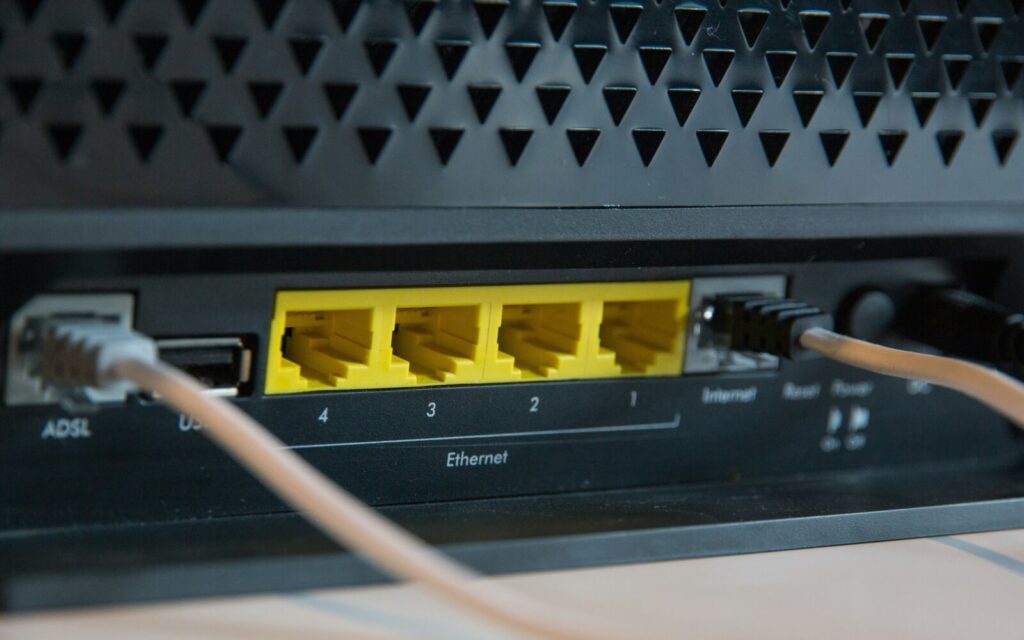
Next, press each cable firmly into place. The cable from the Codex equipment goes into the router’s internet port, often labeled WAN or Internet.
Try a second device
Finally, test with another phone or computer. If none of them connect after a restart, the issue is likely outside your home.
Still down after these steps? Then call us at (502) 208-9413.
Slow speeds
Speed can drop for many reasons inside the home, so measure it the right way before anything else.
Pause what else is running
Several video streams, game downloads or cloud backups at once can fill any plan. So pause them while you test.
Test close to the router
Then run a speed test next to the router, or better yet, on a computer connected by cable.
Compare with your plan
Next, use the speed check below. Remember that plans list up to speeds, which reflect ideal conditions.
Restart and test again
Restart the Codex equipment and the router in order, as described under No internet. After that, test again at a different time of day.
Results stay far below your plan on a cabled test? In that case, call us at (502) 208-9413.
Wi-Fi drops or feels weak
If a cabled device works fine but Wi-Fi does not, the fix is usually inside the house.
Give the router a better spot
Place it high, in the open and near the center of the home. Also keep it away from metal, microwaves and thick walls.
Pick the right band
If your router offers both, 2.4 GHz reaches farther through walls, while 5 GHz is faster close to the router.
Restart the router
Unplug it for 30 seconds and plug it back in. Then give your devices a minute to reconnect.
Extend Wi-Fi to far rooms
In large homes, a mesh system or a second access point can carry Wi-Fi farther than one router can.
Drops on every device, even on a cable? In that case, call us at (502) 208-9413.
One device won’t connect
When other devices work, the problem is almost always with that one device or its saved settings.
Turn Wi-Fi off and on
Switch Wi-Fi off on the device for a few seconds, or restart the device completely.
Forget the network
Next, remove the saved network from the device and join again with your Wi-Fi password.
Update the device
Install any pending system updates, since older software can struggle with newer routers.
Check the distance
Finally, try the device in the same room as the router. If it connects there, follow the Wi-Fi drops steps.
Every device having trouble? Start with the No internet steps, or call us at (502) 208-9413.
Check your speed against your plan
A test only tells the truth when it is done the right way. So follow these three steps, then enter your results.
- Use a cable if you canA computer plugged into the router shows what reaches your home, without Wi-Fi in the way.
- Pause everything elseStop downloads, streams and backups on other devices while the test runs.
- Test more than onceRun it at different times of day, because one result can be a fluke.
How close is your speed to your plan?
Enter your download and upload results to compare them with your plan.
Plans list up to speeds that reflect ideal conditions, as our Terms and Conditions explain. Nothing you enter here leaves your device.
Internet support across Henry County
Our team is based in Turners Station, and our network serves rural homes across Henry County, Kentucky. Because terrain decides what a signal can reach, every new address still starts with a site survey.
This map shows the county line, not signal coverage. To find out about your road, send us your address.
Internet support questions
Quick answers for current customers. For your account itself, log in to ClientZone.
When should I call for internet support?
Call us when the connection is still down after a full restart, or when cabled speed tests stay far below your plan at different times of day. Our number is (502) 208-9413.
Are the speeds on my plan guaranteed?
No. Plans list up to speeds, which reflect performance under ideal conditions. Actual speeds also depend on the signal path, your equipment and network conditions.
Can I move or adjust the Codex equipment?
Please don’t, since our Terms and Conditions ask customers not to move, modify or reconnect it elsewhere. Instead, call us, and we can relocate it within your home at your request.
What do I do if I am moving?
First, place a relocation request with us. Include the date service should end, your new address and phone number, your move-in date and the date you want service transferred.
Where do I manage my account?
Current customers manage their account in ClientZone. For anything else, call (502) 208-9413 or email info@codexstreaming.com.
Need more internet support? Talk to a person
Tell us what you tried, and we will take it from there.